AI Knowledge Base
Overview
The AI Knowledge Base is SyncNow's pre-built index of your work system data. Instead of querying Jira, Azure DevOps, or ServiceNow live for every chat question, SyncNow continuously collects, indexes, and analyzes your work items in the background. When you ask an AI agent a question, it searches this local index first — delivering answers in under a second rather than waiting for remote API calls.
The Knowledge Base also powers deeper analytics that aren't possible with live queries: time-in-status tracking, trend analysis, and cross-system aggregations are all calculated from the indexed data.
How It Works
Two ways data flows into the Knowledge Base:
| Mode | How it works | Best for |
|---|---|---|
| Real-time | Your work system sends a change notification; SyncNow indexes the update within seconds | Keeping the Knowledge Base current as work items are created or updated |
| Bulk Import | An administrator triggers a one-time or recurring full import of entities from a source system | Initial population, or refreshing data after a configuration change |
AI Ingest Processes
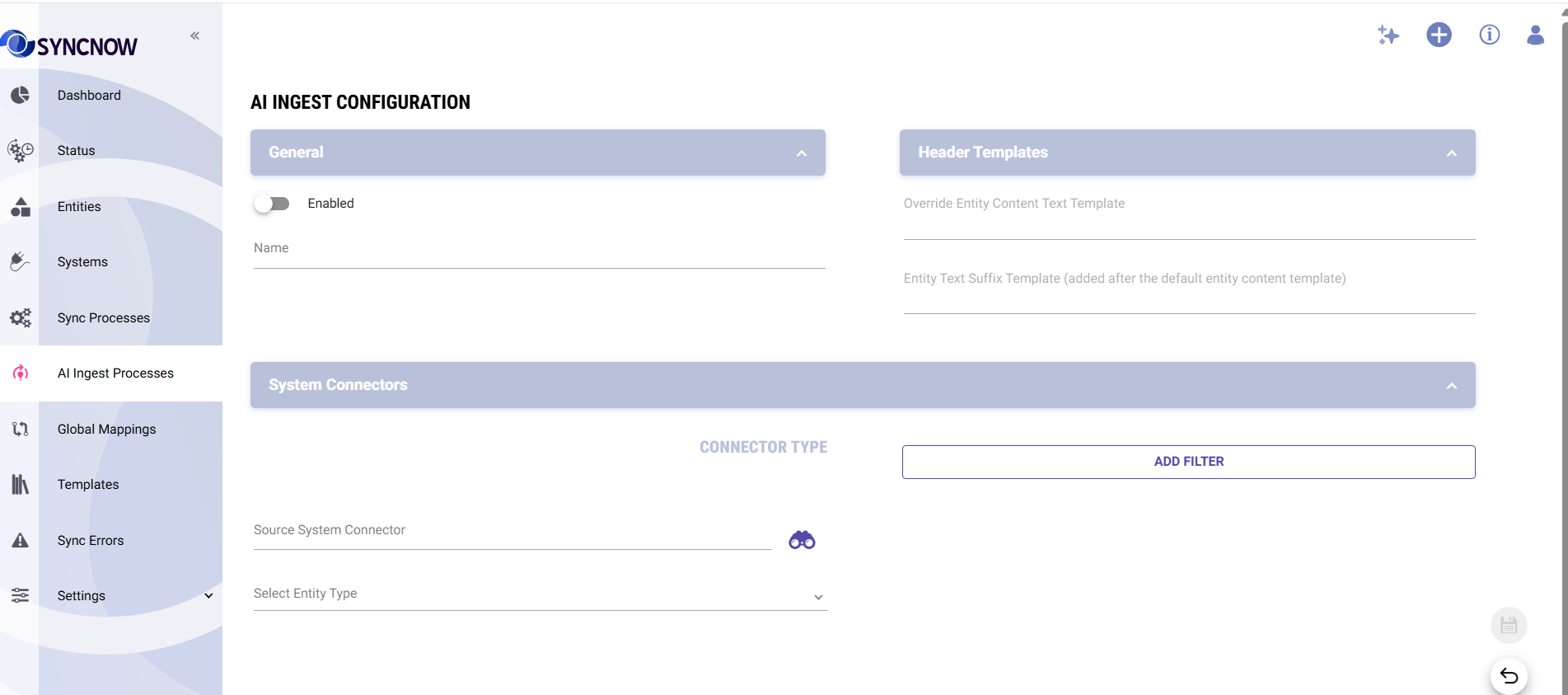
An AI Ingest Process defines what to collect and from which system. You can have multiple processes running simultaneously — for example, one targeting Jira bugs and another targeting Azure DevOps work items.
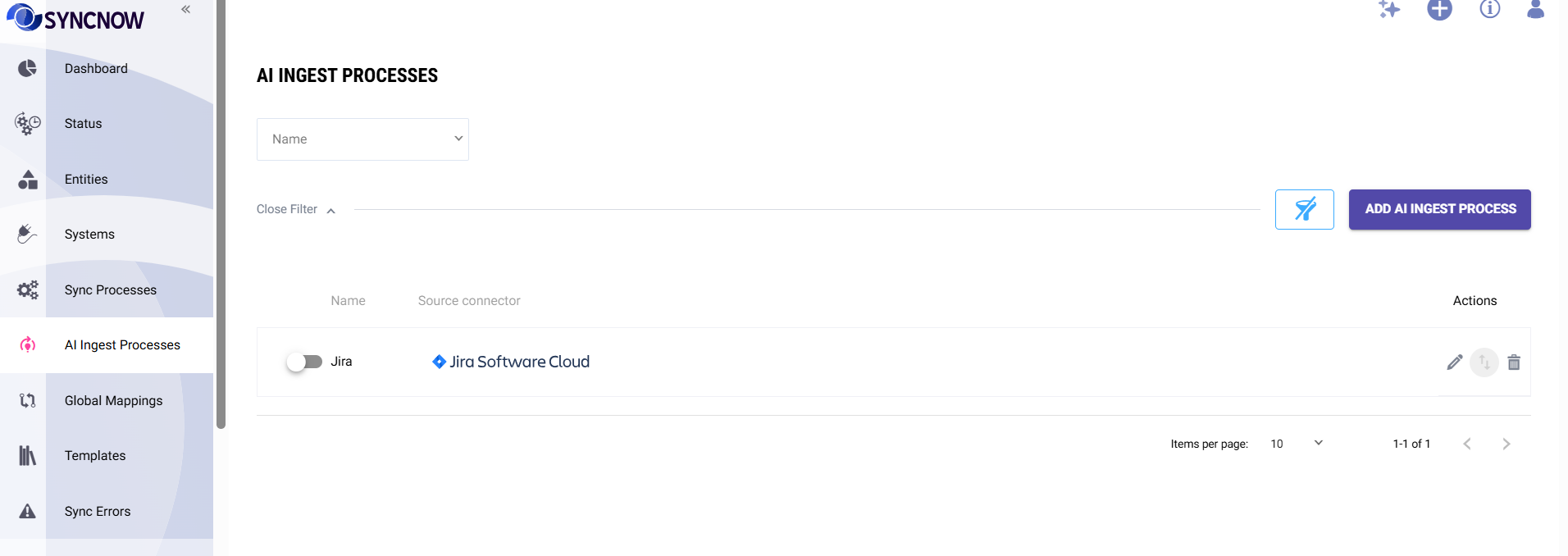
What you configure per process
| Setting | Description |
|---|---|
| Source system | The connected work system to pull data from (Jira, Azure DevOps, Salesforce, etc.) |
| Projects / spaces | Limit ingestion to specific projects, or allow all projects in the system |
| Entity types | Restrict to specific types (e.g., Bug, Story, Incident) or allow all types |
| Filters | Additional field-level conditions (e.g., only active items, only items modified in the last year) |
| Content template | Customize how entity content is formatted before indexing — affects what the AI "knows" about each item |
| Active | Enable or disable the process without deleting it |
Bulk Import
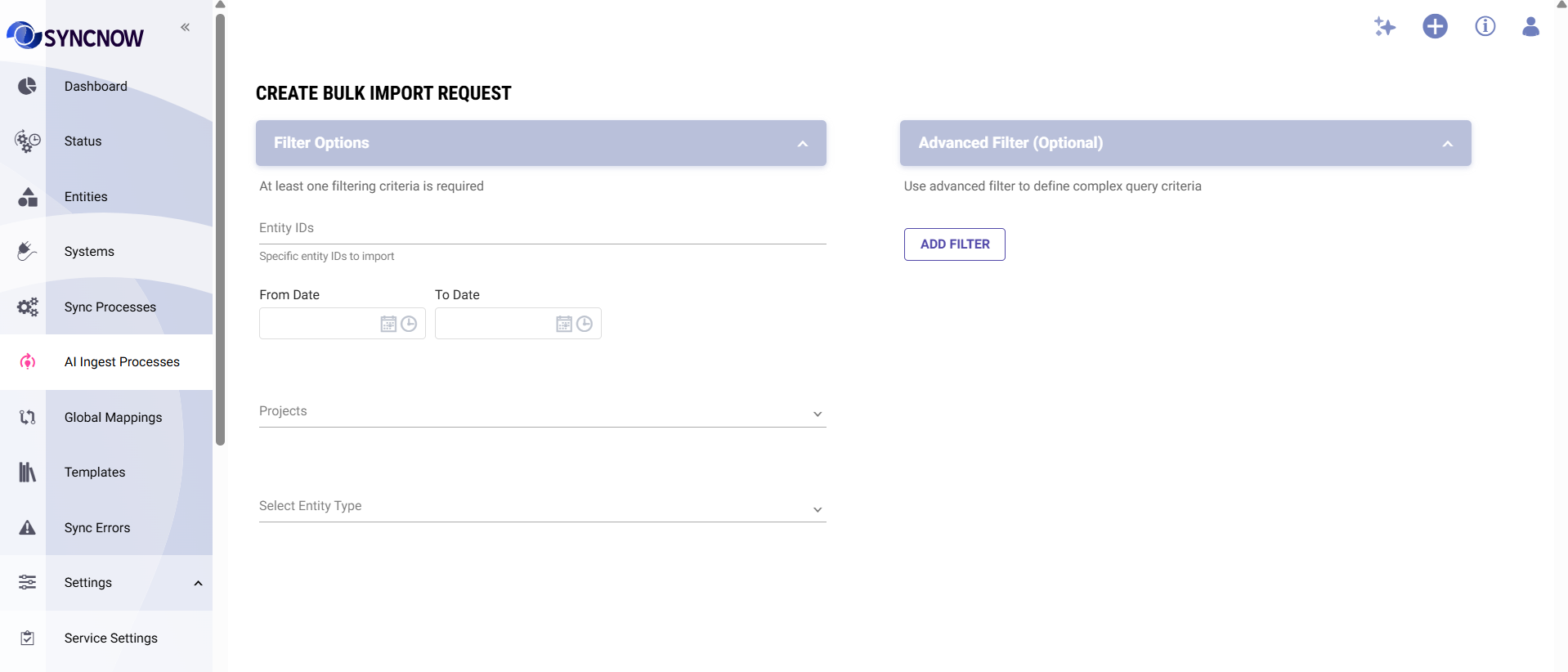
Use Bulk Import to populate or refresh the Knowledge Base on demand. This is typically done when:
- Setting up a new AI Ingest Process for the first time
- Catching up after the process was paused
- Re-indexing data after changing filter or template settings
How to run a Bulk Import
- Navigate to AI → Knowledge Base → Ingest Processes
- Select the process you want to import from
- Click Bulk Import
- Configure the import scope:
- Projects — import from specific projects or all allowed projects
- Entity types — narrow to specific types (optional)
- Date range — import items created or modified within a window (optional)
- Click Start Import
SyncNow queues the import in the background. You can monitor progress in the Import History tab.
For large systems, start with a date filter (for example, the last 90 days) to index recent data quickly. You can run a second import for older history afterwards.
What Gets Indexed
For each work item ingested, the Knowledge Base stores:
- Full item content — title, description, and all relevant fields
- Metadata — entity type, project, assignee, status, priority, and custom fields
- Status history — every status transition with timestamps, enabling time-in-status analytics
- Change snapshots — the current state of the item, updated on every change
This combination lets AI agents answer both factual queries ("show me all open P0 bugs") and analytical ones ("what is the average time items spend in 'In Review' status?").
Scope and Limits
| Limit | Value |
|---|---|
| Maximum items per Bulk Import | 10,000 items |
| Maximum concurrent ingest processes | 3 |
| Processing interval (real-time changes) | Every 10 seconds |
| Bulk import processing interval | Every 30 seconds |
If a bulk import would exceed 10,000 items, apply date or project filters to split it into smaller batches.
Monitoring Import Activity
Every import run creates a log entry under AI → Knowledge Base → Import History. Each entry shows:
- Which process ran and when
- How many items were processed
- Success or failure status
- A detailed log if something went wrong
Logs are retained for 365 days by default.
How the Knowledge Base Powers AI Chat
When you ask the AI a question about your work systems (an "Action" query), it checks the Knowledge Base first:
This means:
- Common queries (recent items, status checks, analytics) are answered in under a second from the local index
- Uncommon or highly specific queries fall back to a live system call, which takes a few seconds longer
- Analytics (time-in-status, trends, velocity) always use the indexed data because live APIs do not provide history
Keeping your AI Ingest Processes active and running regular bulk imports ensures the Knowledge Base stays fresh and your AI responses stay fast and accurate.
FAQ
Q: How often is the Knowledge Base updated? A: In real-time mode, changes from your work system are indexed within seconds. The processing job runs every 10 seconds. For systems that do not support real-time notifications, you can use bulk imports on a schedule.
Q: Does indexing affect performance of my work systems? A: No. SyncNow uses the same API connections as regular sync processes. Bulk imports page through data in batches of 100 items to avoid overloading source systems.
Q: Can I delete indexed data? A: You can deactivate or delete an AI Ingest Process to stop new data from being indexed. Contact your SyncNow administrator to purge existing indexed data.
Q: What if I change the content template on an existing process? A: New and updated items will use the new template automatically. To re-index historical items with the new template, run a Bulk Import.
Q: Is the indexed data secure? A: Yes. Indexed data is stored within your SyncNow instance and never leaves your environment. Access is governed by the same role-based permissions as the rest of SyncNow.